Quick Answer
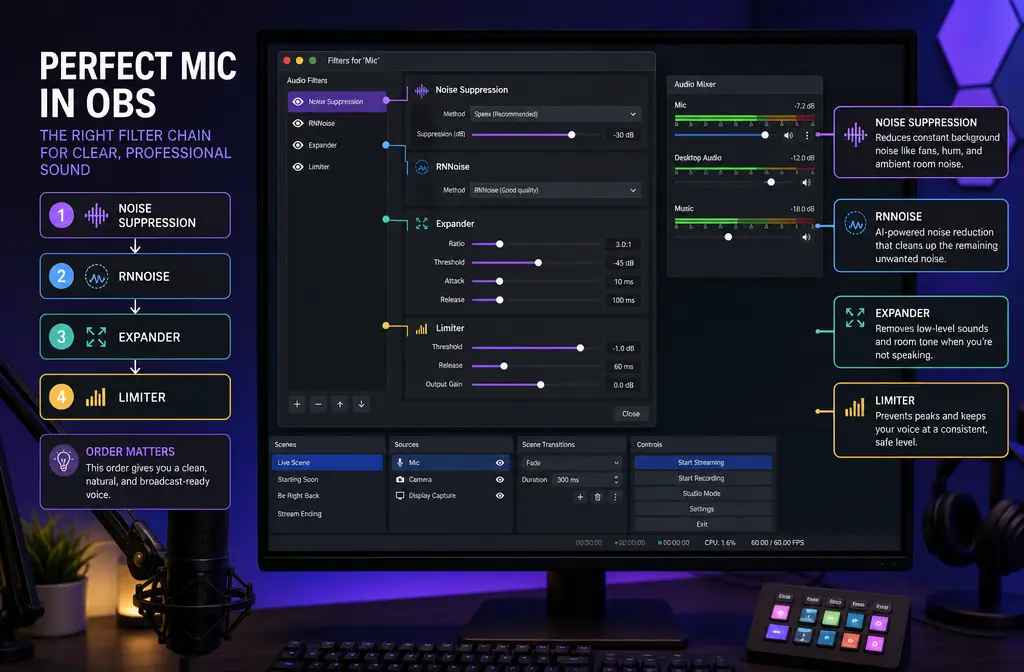
For most spoken-word setups in OBS, the best starting point is simple: add Noise Suppression to your mic and leave the method on RNNoise. If you still hear room noise between phrases, add an Expander after it. This usually sounds more natural than a hard gate.
- Best default for most people: Noise Suppression > RNNoise
- Best for weaker PCs: Noise Suppression > Speex
- Best for idle-room hiss between phrases: RNNoise + Expander
- Best for RTX users who already use NVIDIA tools: NVIDIA Noise Removal may help, but it requires compatible RTX hardware and drivers
If your problem is echo, wind blasts, loud roommates, or other voices while you are talking, OBS is usually the wrong tool. OBS itself describes its noise suppression filter as best for mild background noise or white noise, not severe loud-room problems. In those cases, it is often faster to export the recording and clean noisy voice recordings in SimpleClean instead of stacking more live filters.
Best OBS noise suppression settings for voice
If you want one spoken-word workflow that works for streaming, tutorials, and live podcasts, start here:
- Open OBS.
- In Audio Mixer, click the gear next to your mic.
- Choose Filters.
- Add Noise Suppression.
- Set Method to RNNoise.
- Test your voice while your fan, PC, or room tone is present.
- If idle noise is still audible between phrases, add an Expander after suppression.
- If your peaks are uneven, add compression later. Put a limiter near the end of the chain.
This is the highest-percentage fix because it separates two jobs:
- Noise Suppression tries to reduce background noise while you are speaking.
- Expander or Noise Gate reduces or mutes the mic when you are not speaking.
That distinction matters. Many people try to solve everything with a gate, then wonder why keyboard clicks or fan noise still leak through whenever they talk.
What OBS can remove well vs what it cannot
| Noise problem | OBS usually works well? | Best tool in OBS | Notes |
|---|---|---|---|
| Light fan or PC hum | Yes, often | RNNoise first | Good fit for mild steady noise |
| General room tone / hiss | Yes, often | RNNoise + Expander | Expander helps between phrases |
| Keyboard clicks while you talk | Sometimes | RNNoise, mic placement, expander for gaps | Harder if clicks overlap your speech |
| Desk bumps / handling noise | Limited | Some suppression, better prevention | Mechanical noise is harder to remove cleanly |
| Background voices | Limited | Maybe slight reduction only | Competing speech is much harder than hum |
| Room echo / reverb | No, not reliably | Not an OBS suppression job | Needs room treatment or later cleanup |
| Wind blasts / severe loud noise | No, not reliably | Not an OBS suppression job | OBS says suppression is for mild noise, not severe cases |
OBS's own documentation is clear that the Noise Suppression filter is for mild background noise. That is why it can help with fan noise and light hiss, but it will not truly fix a reflective room, a loud TV nearby, or two people speaking at once.

Step by step: add Noise Suppression in OBS
- Go to your mic source. In the OBS Audio Mixer, click the gear icon next to your microphone.
- Open Filters. Under Audio Filters, click the plus button.
- Add Noise Suppression. Name it if you want, then confirm.
- Choose a method. OBS supports RNNoise, Speex, and NVIDIA Noise Removal when the NVIDIA Broadcast SDK or redistributable is installed.
- Start with RNNoise. OBS uses RNNoise as the default method because it is the better-quality option for many voice setups.
- If needed, try Speex. Speex is lighter on CPU and has a suppression level control. OBS notes a default of -30 dB; more aggressive settings can distort voice.
- Monitor your voice. Speak normally, then speak while your usual background noise is present.
- Add an Expander or Gate only if needed. Use these to hide noise during pauses, not as your first line of defense for speech overlap.
RNNoise is based on a recurrent neural network for audio noise reduction, which is why it often sounds better than older suppression approaches on voice.
RNNoise vs Speex vs NVIDIA Noise Removal: which to choose
| Method | Best for | Main tradeoff | Recommendation |
|---|---|---|---|
| RNNoise | Most streamers, podcasters, tutorial creators | Uses more CPU than Speex | Best default choice |
| Speex | Older or weaker PCs | More aggressive settings can distort voice | Use when you need lighter processing |
| NVIDIA Noise Removal | People with supported RTX hardware already in that ecosystem | Not universal; requires compatible RTX GPU and drivers | Only worth considering if your system supports it |
- Choose RNNoise if: you want the safest quality-first starting point.
- Choose Speex if: OBS performance matters more and your PC struggles with heavier processing.
- Choose NVIDIA Noise Removal if: you have the required RTX setup and want to test that path inside your workflow.
For most readers, the decision tree is straightforward: RNNoise first, Speex on weaker PCs, NVIDIA only if your hardware already supports it.
What is the best filter order for OBS mic audio?
For spoken voice, a practical starting order is:
- Noise Suppression
- Compressor if needed
- Expander or Noise Gate
- Limiter
Why this order? Noise suppression should happen early because it tries to reduce steady noise before later filters react to it. OBS also recommends placing an Expander near the end of the chain before a limiter. That is one reason expanders often behave better after your basic tone cleanup.
If you use both an expander and a gate, keep it simple and test carefully. In many voice setups, you only need one of them, and the expander is usually the more natural-sounding choice.
Use an Expander vs Noise Gate: when each works better
These filters do similar jobs, but they do not sound the same.
- Noise Gate: turns the mic off when input falls below a threshold. Good when you want stricter muting.
- Expander: reduces quieter sounds instead of fully muting them. Good when you want smoother, less abrupt results.
OBS's documentation specifically notes that an expander can sound more natural because it reduces audio rather than fully cutting it off. That matters if you hate the “on/off” feel where word endings vanish or breaths get chopped.
Use an expander when:
- You hear room hiss between phrases
- Your gate sounds too abrupt
- You want your mic to fade down rather than slam shut
Use a gate when:
- Your room is quiet enough that hard muting sounds fine
- You want stricter isolation during silent moments
- You do not mind more aggressive cutoff behavior
Three starting workflows for common OBS noise problems
1) Fan or PC hum
Start with: Noise Suppression (RNNoise) > Expander > Limiter
- Use RNNoise first for the steady background layer.
- Add an expander only if the room tone is still obvious between phrases.
- If RNNoise is too heavy for your system, try Speex with caution rather than pushing aggressive suppression immediately.
2) Keyboard clicks
Start with: Noise Suppression (RNNoise) > Expander > Limiter
- RNNoise may reduce some clicks, especially if they are softer and off-axis.
- The expander helps during pauses, but it will not stop clicks that happen while you are actively speaking.
- If the keyboard is still loud, the real fix is often mic position and distance, not extra filter stacking.
This is the important truth: OBS cannot reliably remove keyboard noise that overlaps your voice without tradeoffs. Overlap is the hard case.
3) General room noise
Start with: Noise Suppression (RNNoise) > Compressor if needed > Expander > Limiter
- Use RNNoise to clean the constant background layer.
- Add compression only if your voice level is uneven.
- Use the expander to make pauses cleaner without sounding unnaturally chopped.

How to stop robotic, watery, or choppy voice
If OBS noise suppression makes your voice sound robotic, watery, or phasey, the usual cause is too much processing for the type of noise. The filter is trying to decide what is voice and what is not, and when the background is too loud or too complex, your speech starts getting damaged too.
Try this troubleshooting order:
- Back off aggressive settings. If you switched to Speex and pushed suppression hard, ease it back. OBS warns that stronger suppression can distort speech.
- Switch to RNNoise. If your PC can handle it, RNNoise is usually the better first choice for voice quality.
- Remove redundant filters. Too many stacked filters can make artifacts worse, not better.
- Use an expander instead of a hard gate. This often fixes the chopped-off feel between words.
- Reduce the noise at the source. Move the mic closer, lower fan noise, and keep the keyboard out of the mic’s strongest pickup area.
- Stop expecting live suppression to fix severe problems. Loud echo, heavy noise, and overlapping voices are where robotic artifacts show up fastest.
If you have already recorded the file and OBS processing still leaves obvious artifacts, export the audio or video and remove background noise from the recording with SimpleClean. That is often a better fallback than trying to force stronger live suppression.
When OBS is the wrong tool
OBS is excellent for light live cleanup. It is not magic restoration software.
OBS is usually the wrong tool for:
- Room echo or reverb
- Wind blasts
- Loud roommates or TVs in the background
- Overlapping speech from nearby people
- Severe mechanical noise already baked into the recording
In those cases, you will often get better results by recording the cleanest version you can, then processing the file afterward. If your stream VOD, tutorial, or podcast episode already contains ugly ambient noise, export it and run it through SimpleClean instead of endlessly tweaking live filters meant for mild suppression.
Should you use Noise Suppression or Noise Gate in OBS?
Use Noise Suppression when the noise is present while you are speaking. Use a Noise Gate when the main issue is noise between phrases. If you want a smoother version of that behavior, use an Expander instead of a gate.
That is the simplest rule to remember:
- During speech: Noise Suppression
- Between speech: Expander or Gate
Export-and-clean fallback workflow
If OBS gets you close but not all the way there, do this:
- Record with light live cleanup only.
- Export the audio or video.
- Run the file through a dedicated cleanup workflow.
- Re-import the cleaned file for upload or editing.
This is especially useful when your audio has problems that live suppression is bad at: echo, background voices, or heavy ambience. For those cases, post-processing is usually faster than trying to tune five OBS filters around a bad room.
If that is your situation, start here: clean OBS recordings after export with SimpleClean.
Related guides
- How to remove background noise in Audacity without making your voice sound robotic
- How to remove echo in Premiere Pro without wrecking voice clarity
Conclusion
If you only remember one setup, make it this: RNNoise first, then an expander if pauses still sound noisy. Switch to Speex only when you need a lighter option. Consider NVIDIA Noise Removal only if you already have compatible RTX hardware. And if the problem is echo, wind, severe room noise, or other voices, stop blaming yourself: those are cases where OBS often cannot fully solve the recording in real time.
For fast live cleanup, OBS is excellent. For badly compromised audio, exported cleanup is usually the smarter path.
Sources and further reading
- OBS Noise Suppression Filter - Primary source for supported methods, defaults, and limits of OBS noise suppression.
- OBS Filters Guide - Primary source for the role of noise suppression, gate, expander, compressor, and limiter in OBS.
- OBS Expander Filter - Primary source supporting that an expander can sound smoother than a gate and placement guidance.
- OBS Noise Gate Filter - Primary source for how gate thresholds and behavior work in OBS.
- RNNoise official repository - Primary source confirming RNNoise is based on a recurrent neural network for audio noise reduction.
- NVIDIA Broadcast App - Primary source for current NVIDIA Broadcast requirements and RTX positioning.