
Adobe Podcast vs Descript Studio Sound vs Krisp: Which Is Best for Removing Background Noise?
Quick Answer
If you need the short version, choose by workflow, not by brand:
- Best for live meetings and calls: Krisp. Krisp is a real-time noise cancellation app built for calls, meetings, and live communication. Its own help documentation says it is not intended for post-production use.
- Best for one-click cleanup of uploaded recordings: Adobe Podcast. Adobe Podcast Enhance Speech is a browser-based tool for improving recorded spoken audio and video after the fact.
- Best for cleanup plus transcript/video editing: Descript Studio Sound. Descript combines noise reduction and voice cleanup with transcript-based editing, filler-word removal, and broader podcast/video workflow tools.
If your main job is simply cleaning an exported file without committing to a full editor, you can also clean podcast audio with SimpleClean after export.
The biggest mistake buyers make is comparing these three as if they do the exact same job. They do not. Krisp prevents noise during capture. Adobe Podcast repairs uploaded spoken recordings. Descript cleans speech inside a fuller editing environment.
What each tool actually is
Before comparing sound quality, it helps to define the category each product belongs to.
Krisp
Krisp is a desktop app for real-time noise cancellation during calls and meetings. According to Krisp’s help center, it removes noise on live audio streams and is designed for communication apps rather than post-production file cleanup. That makes it the right fit when you want to stop barking dogs, keyboard noise, fan noise, or background voices before they end up in the call or recording.
Adobe Podcast
Adobe Podcast Enhance Speech is a browser-based post-production tool for spoken audio. Adobe also documents Enhance Speech for video, which confirms it can be used on uploaded video files as part of a browser workflow. Adobe’s recent updates also note Enhance Speech v2 controls, which matters if you want a bit more control than a pure one-button cleanup.
Descript Studio Sound
Descript Studio Sound is a cleanup feature inside Descript’s editing platform. Descript says Studio Sound reduces background noise, echo, and other distractions on recorded audio. Because it lives inside Descript, it is most useful when you also want text-based editing, video editing, publishing prep, or transcript-driven cuts in the same project.
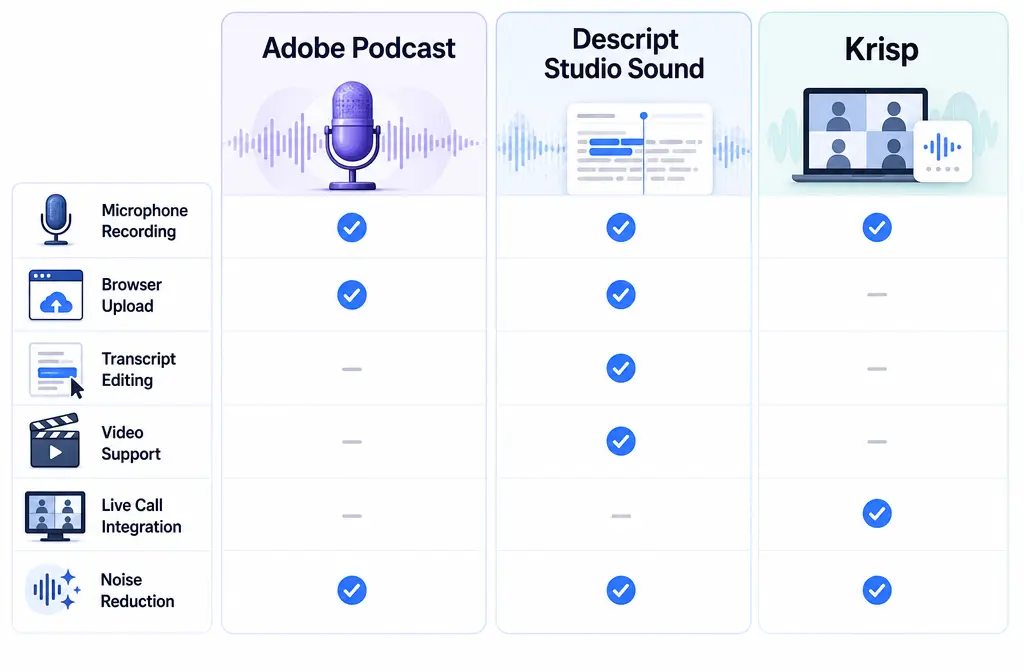
Feature comparison: Adobe Podcast vs Descript Studio Sound vs Krisp
| Feature | Adobe Podcast | Descript Studio Sound | Krisp |
|---|---|---|---|
| Primary job | Post-production speech enhancement | Speech cleanup inside an editor | Real-time noise cancellation |
| Input type | Uploaded audio and video files | Recorded/imported project files | Live microphone and speaker audio during calls |
| Best for live calls? | No | No | Yes |
| Best for prerecorded recordings? | Yes | Yes | No, not intended for post-production |
| Video support | Yes, Adobe documents Enhance Speech for video | Yes, within Descript projects | Indirect only through live app use, not file cleanup |
| Transcript editing | No full transcript editor positioning in supplied sources | Yes | No |
| Filler-word removal | Not established in supplied sources | Yes, part of broader Descript workflow | No |
| Overdub / voice replacement | Not established in supplied sources here | Yes, broader Descript editing category | No |
| Echo reduction | Speech enhancement focused; avoid overclaiming beyond supplied Adobe positioning | Yes, Descript says Studio Sound reduces echo | Noise cancellation focus for live use |
| Pricing model | Free and Premium plans | Plan-based; Studio Sound uses AI Credits on current plans | Plan-based app for live communication use |
| Internet requirement | Browser workflow | Cloud-connected workflow for many AI features | App-based live processing workflow |
| Privacy tradeoff | Requires upload workflow | Requires platform/project workflow | Runs during live communication, still a third-party layer in your call path |
Bottom line: if your problem happens during a Zoom, Meet, or Teams call, start with Krisp. If your problem exists in a file you already recorded, start with Adobe Podcast or Descript instead.
When Adobe Podcast wins
Adobe Podcast is strongest when you want fast cleanup on an uploaded recording and do not need a full timeline editor.
Adobe Podcast is usually the better pick for:
- Noisy remote podcast interviews already recorded
- Laptop-mic voiceovers that need quick improvement
- Exported WAV or MP4 files that just need cleaner speech
- Users who want a browser tool, not a heavier editing suite
Adobe’s positioning is especially appealing for people who say, “I already have the recording. I just need it to sound more presentable.” Its browser-based workflow is simpler than moving into a full edit environment if cleanup is your only task.
Choose Adobe Podcast over Descript when:
- You are not planning transcript-led edits
- You do not need captioning, scene edits, or project collaboration in the same app
- You want a quick enhance pass on spoken-word material
Where Adobe Podcast struggles:
- Clipping and distortion are not truly “fixed” by AI speech enhancement
- Severe speaker overlap still sounds messy
- Overprocessing can make speech sound synthetic if pushed too hard
- Music-heavy material is not the ideal use case for speech-first enhancement
If Adobe Podcast feels too tied to a broader platform decision and you just want a lightweight exported-file workflow, remove background noise from recordings with SimpleClean instead.
When Descript Studio Sound wins
Descript wins when cleanup is only one step in a larger spoken-content workflow.
Descript says Studio Sound reduces background noise, echo, and distractions. That alone makes it competitive for file cleanup. But its real advantage is that you can keep working in the same project after cleanup.
Descript is usually the better pick for:
- Podcast teams editing by transcript
- YouTubers cutting talking-head videos and screen recordings
- Course creators who want cleanup, structure edits, and export in one place
- Editors who also want filler-word removal and text-based revision workflows
This is the best choice if your real question is not just “How do I remove noise?” but “How do I clean, cut, caption, and publish a spoken video faster?” After cleanup, you can add subtitles with Best AI Captions or localize the finished lesson or video with Translate Dub.
Choose Descript over Adobe Podcast when:
- You want transcript-led editing in the same tool
- You care about echo reduction as part of the cleanup step
- You are already editing video or podcasts, not just enhancing one file
Where Descript struggles:
- It can be more tool than you need if all you want is one cleanup pass
- Studio Sound currently uses AI Credits on current plans, so usage planning matters
- Like other AI speech cleanup tools, it can create artifacts if over-applied
When Krisp wins
Krisp wins when prevention beats repair.
Krisp’s own documentation makes the category line clear: it is a real-time noise cancellation app for calls, and it is not intended for post-production use. That means it is the best fit for communication scenarios where noisy audio hurts the conversation in the moment.
Krisp is usually the better pick for:
- Zoom, Google Meet, and Microsoft Teams calls
- Live sales calls and customer support conversations
- Remote interviews where you want cleaner capture before recording
- Streaming or webcam sessions where background noise is predictable and ongoing
Krisp can be a smart first layer if your environment is noisy and you have no chance to re-record. It is especially useful for remote workers who need better call quality every day, not just better podcast audio once in a while.
Choose Krisp over Adobe Podcast or Descript when:
- The audio problem is happening live right now
- You need the other person to hear less noise during the meeting
- You want cleaner call capture before the file even exists
Where Krisp struggles:
- It is not the right tool for cleaning prerecorded WAV or MP4 files
- Distance and mic technique still matter; bad capture cannot be fully rescued live
- Sudden or unusual noises may not be handled perfectly
- It will not truly repair clipping, distortion, or badly overloaded microphones
Do not stack these blindly
One of the fastest ways to get robotic or metallic voice is stacking multiple denoisers without a plan.
For example:
- Krisp during the call
- Then Adobe Podcast on the exported file
- Then Studio Sound again inside Descript
That can work sometimes, but it can also create watery consonants, swirly ambience, and unnatural speech texture. Start with one primary cleanup pass. Then only add another tool if a clear problem remains.
A safer order is:
- Use Krisp before recording if the session is live.
- Edit the content first if you are cutting out mistakes, long pauses, or duplicate takes.
- Apply one main speech cleanup tool after editing: Adobe Podcast or Descript Studio Sound.
- Listen for artifacts before doing anything else.
If you are already hearing robotic results, our guide on fixing metallic voice after noise reduction explains the usual causes and safer recovery options.
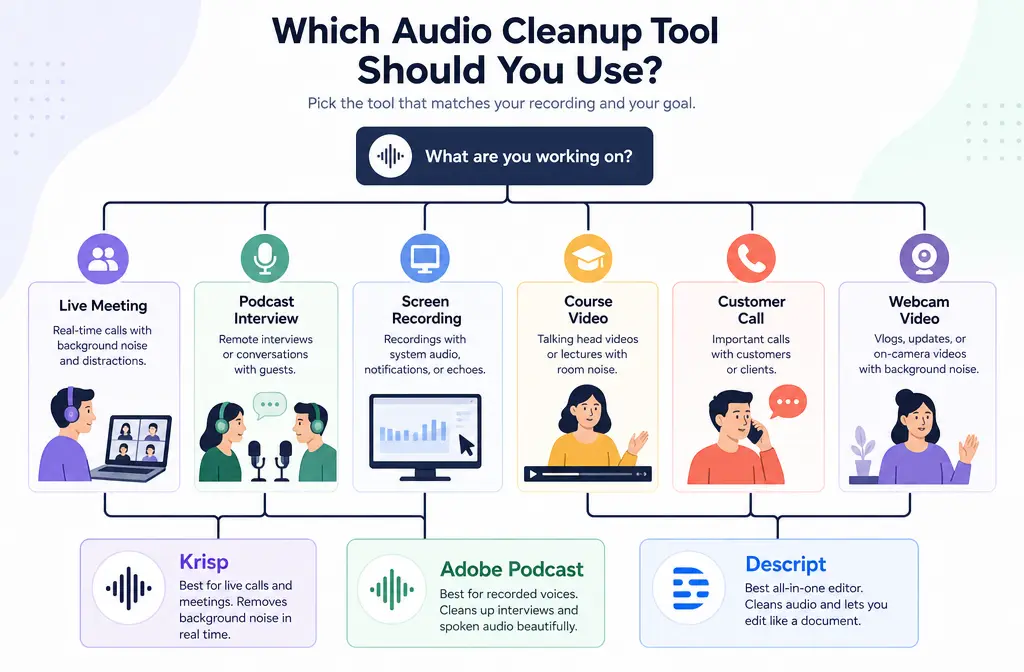
Decision tree: which one should you use for your exact job?
1. Meeting recording
- Need cleaner live audio during the meeting? Use Krisp.
- Already recorded and now fixing the file? Use Adobe Podcast for quick cleanup, or Descript if you also need transcript edits.
2. Podcast interview
- Remote interview with noisy participants? Krisp before the session can help prevent noise.
- Recorded interview that needs polish? Adobe Podcast is the simpler fix.
- Need transcript-led editing, filler cleanup, and episode assembly? Use Descript.
3. Screen recording
- Need cleanup only? Adobe Podcast is the lighter route.
- Need cleanup plus cuts based on transcript? Descript is the better fit.
- Working in OBS or another live setup? Krisp can help before capture. For more live-recording workflow detail, see our OBS Studio background noise guide.
4. Course video
- One-off cleanup on exported lecture audio/video? Adobe Podcast.
- Ongoing course production with revisions and captions? Descript, then Best AI Captions or Translate Dub for accessibility and multilingual reach.
5. Customer call or sales demo
- Need better live call quality? Krisp.
- Need a cleaned recording afterward for training or content reuse? Export and enhance later with Adobe Podcast, Descript, or SimpleClean.
6. Webcam video for YouTube or social
- Fast speech cleanup after export? Adobe Podcast.
- Cleanup plus transcript-led cuts for content repurposing? Descript.
- Publishing that cleaned content across multiple channels? Use Mallary.ai to schedule and distribute clips, posts, and follow-up social content across platforms from one workflow.
Hybrid workflows that make sense
You do not always need to pick only one tool forever. The best workflow is often split by stage:
- Krisp before recording to reduce live meeting noise
- Adobe Podcast after export for fast spoken-word cleanup
- Descript after import when editing and cleanup happen together
- SimpleClean after export when you want fast file cleanup without switching your whole editing stack
This matters for teams who already like their editor and do not want noise removal locked inside a heavier app. If the built-in cleanup is missing, too aggressive, or just inconvenient, you can clean exported voice recordings with SimpleClean and keep the rest of your workflow unchanged.
Troubleshooting: why does AI noise reduction create robotic voice?
The usual causes are:
- Too much denoising strength
- Stacking multiple cleanup tools
- Trying to fix clipping or distortion with a denoiser
- Very low-quality source audio with lots of room echo
- Multiple speakers talking over each other
If the voice starts sounding metallic, watery, or phasey, back off the processing and keep only one main cleanup stage. None of these tools truly restore severely damaged audio; they mainly improve intelligibility and perceived cleanliness.
Should you use Adobe Podcast before or after editing?
Usually, after major content edits. If you clean first and then cut heavily, you may waste time processing sections you will delete anyway. A common exception is when the raw file is so distracting that you need a cleaner version just to edit comfortably.
If you are editing in Descript, it often makes sense to do your transcript-based cuts there first and then apply Studio Sound in the same project.
Final verdict
- Choose Krisp if your problem is live call noise.
- Choose Adobe Podcast if you want one-click cleanup on uploaded spoken recordings.
- Choose Descript Studio Sound if you want cleanup plus transcript/video editing in one app.
And if your real need is simpler than all three categories above, there is still a strong case for a lightweight export-first workflow. Instead of moving into a bigger editing environment just for denoise, you can upload the finished file and remove background noise from audio or video with SimpleClean.
That is the most practical way to choose here: not “Which brand is best?” but “Which workflow matches the job I am doing today?”
Sources and further reading
- Adobe Podcast plans - Supports references to Adobe Podcast free and Premium plans.
- What’s new in Adobe Podcast? - Supports mention of Enhance Speech v2 controls and recent Adobe Podcast updates.
- Enhance Speech for video - Supports Adobe Podcast browser workflow and video-file enhancement.
- Studio Sound – Descript Help - Supports claims that Studio Sound reduces background noise, echo, and distractions.
- Descript pricing - Supports plan-based positioning and the note that Studio Sound uses AI Credits on current plans.
- What is Krisp? – Krisp Help - Supports the key distinction that Krisp is a real-time noise cancellation app and is not intended for post-production use.
- FAQ about Krisp Noise Cancellation - Supports caveats around operating conditions, mic distance, and performance behavior.
- What types of noises does Krisp cancel? - Supports examples of noise categories Krisp is designed to cancel in live use.