
Quick Answer
Yes, BandLab can remove some background noise, but the right tool depends on the type of problem:
- Use Denoise for steady noise like fan sound, hiss, hum, or buzz.
- Use Voice Cleaner for vocal-first cleanup when the problem includes changing background noise, room echo, or tonal imbalance. BandLab says Voice Cleaner includes Noise Remover, DeReverb, and AutoEQ.
- Use Noise Gate only to mute noise between phrases. It does not remove noise underneath your voice while you are speaking or singing.
- Export the file and clean it separately when the vocal starts sounding metallic, the room echo is baked in, or the noise overlaps the voice too much.
For most BandLab vocals or spoken audio, the safest order is cleanup first, then EQ/compression, then loudness polish. Avoid stacking heavy Denoise, heavy Voice Cleaner, and an aggressive gate on the same take.
If BandLab still leaves hiss, wind, clicks, hum, echo, or traffic in the file, you can clean exported BandLab audio with SimpleClean after exporting a WAV, M4A, or video file.
What BandLab Can and Cannot Fix
BandLab gives you a few useful options, but they are not interchangeable.
| Tool | Best for | Not ideal for | Best use case |
|---|---|---|---|
| Denoise | Steady background noise like hum, hiss, fan, buzz | Changing noise, room echo, complex overlap with speech | Fast cleanup on a single region |
| Voice Cleaner | Vocal-first cleanup, dynamic noise, reverb, tonal polish | Severely damaged audio, clipped recordings | Speech, vocals, voiceovers, podcasts |
| Noise Gate | Muting room noise in silent gaps | Noise under active vocals, echo, hiss during words | Light cleanup between lines |
| Export + separate cleanup | Severe noise, wind, clicks, crackle, heavy echo, mixed audio/video files | Quick in-DAW edits | When BandLab processing starts sounding unnatural |
BandLab's official comparison explains the key split clearly: Denoise is better for stationary noise, while Voice Cleaner is designed for more complex vocal cleanup, including dynamic noise and room issues. That makes BandLab good for light to moderate cleanup, but not always the best place to rescue a badly recorded take.
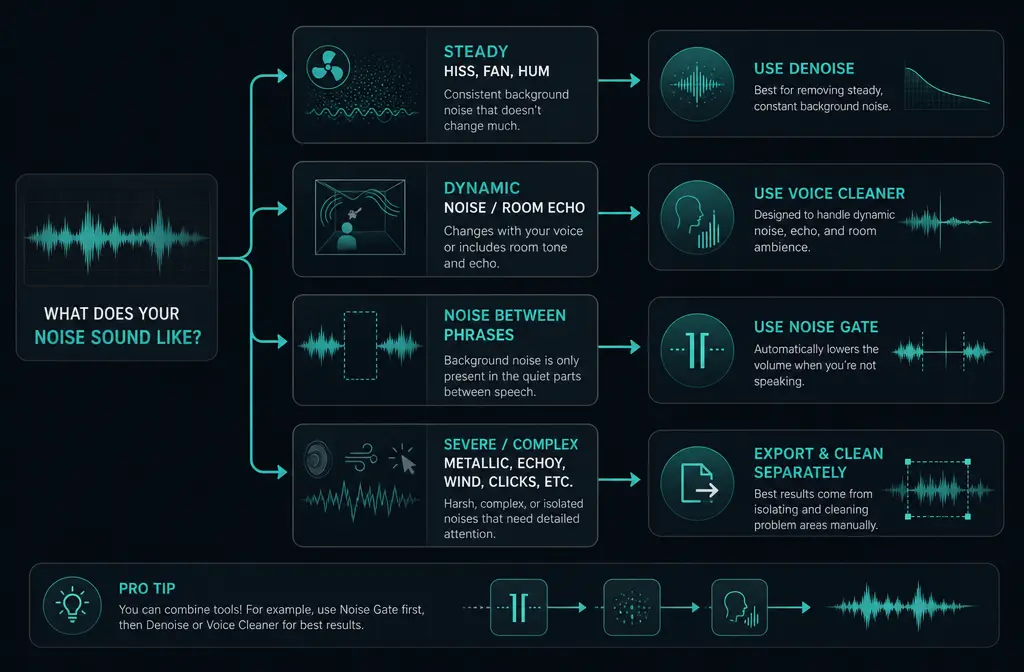
Fast Decision Tree: Denoise vs Voice Cleaner vs Noise Gate vs Export
- You hear steady hiss, fan noise, low hum, or electrical buzz: start with Denoise.
- You hear changing background noise, room echo, or the vocal sounds boxy: use Voice Cleaner.
- The recording is mostly fine, but the room noise is obvious between words: add a light Noise Gate.
- The voice already sounds watery, metallic, or thin after cleanup: stop stacking tools and export the file for separate cleanup.
- The noise overlaps the voice a lot, like traffic, chatter, wind, clicks, or crackle: separate cleanup on the exported file is usually safer than piling on more processing inside BandLab.
Denoise in BandLab: When to Use It and How
BandLab Studio includes Denoise as a built-in region action. According to BandLab's Help Center, it is available on web and mobile and can be undone or redone after applying it.
Use Denoise when:
- Your noise is fairly constant across the clip
- The vocal itself is usable, but there is a bed of fan noise, hiss, hum, or buzz behind it
- You want a quick first pass before mixing
How to use Denoise on BandLab Web
- Open your project in BandLab Studio.
- Select the audio region you want to clean.
- Right-click the region.
- Choose Denoise.
- Listen back immediately and undo it if the vocal gets dull or metallic.
How to use Denoise on iPhone or Android
- Open the project in the BandLab app.
- Select the audio region.
- Open the region tools menu.
- Tap Denoise.
- Preview the result and undo if needed.
Best practice: apply Denoise once, listen, and stop if intelligibility starts dropping. If you keep hearing noise, that does not automatically mean you should hit it again. Repeated cleanup passes often create artifacts faster than they solve the problem.
Voice Cleaner in BandLab: What It Does and When It Is Worth It
Voice Cleaner is a BandLab Membership feature aimed at voice-focused cleanup. BandLab's Help Center says it includes three modules:
- Noise Remover for unwanted background noise
- DeReverb for reducing room echo or ambience
- AutoEQ for automatic tonal shaping
This is the better choice when Denoise alone is not enough, especially for podcasts, voiceovers, sung vocals, or rap recorded in a reflective room.
Use Voice Cleaner when:
- The background noise changes over time instead of staying constant
- The room sound is part of the problem
- You want one vocal-focused cleanup stage instead of building a longer manual chain
What each Voice Cleaner module is for
- Noise Remover: best for reducing background noise around the voice.
- DeReverb: best when the room sounds echoey, roomy, or distant.
- AutoEQ: best after cleanup when the vocal needs clearer tonal balance.
BandLab's own guidance positions Voice Cleaner as the more advanced option compared with Denoise. In plain terms: if your problem is not just a simple hum or hiss, Voice Cleaner is usually the more logical BandLab tool.
If you also publish video clips after cleaning your BandLab audio, Best AI Captions can help add captions and subtitles, and Translate Dub fits naturally if you want translated, dubbed, and captioned versions for multilingual audiences.
Why Noise Gate Only Helps Gaps Between Words
A Noise Gate does not actually remove steady noise from underneath an active vocal. It simply turns the signal down when the vocal falls below a threshold. That means it can clean up silent spaces, but it cannot solve noise that is present while you are speaking or singing.
Use a gate for:
- Breathing spaces between lines
- Pauses in spoken-word recordings
- Light room-noise control after denoising
Do not expect a gate to fix:
- Fan noise audible during words
- Traffic that overlaps the voice
- Echo or reverb
- Hiss running through the whole performance
Practical warning: if the gate is set too aggressively, it will clip consonants, chop breaths unnaturally, and create pumping. For speech and vocals, a gentler gate is usually better than a hard one.
Best Order for Cleaner Speech and Vocals in BandLab
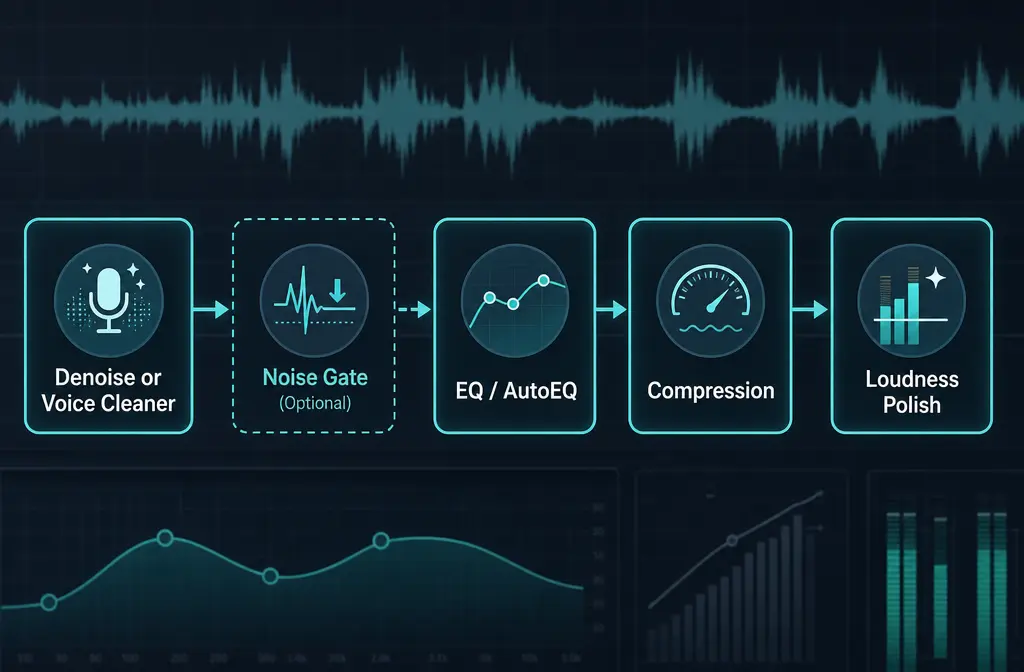
The most reliable workflow is:
- Cleanup first with Denoise or Voice Cleaner
- Then shape tone with EQ or AutoEQ
- Then control dynamics with compression if needed
- Then do loudness polish at the end
Why this order works: if you compress or brighten a noisy vocal before cleanup, you often make the noise more obvious. Cleaning first gives every later processor less junk to exaggerate.
Recommended speech-first chains
- Simple noise: Denoise → light EQ → light compression
- Voice + room echo: Voice Cleaner → light compression → final polish
- Mostly clean take with noisy pauses: Denoise or Voice Cleaner → gentle Noise Gate → EQ/compression
What Not to Stack
This is where many BandLab users make the vocal worse.
- Do not stack heavy Denoise, heavy Voice Cleaner, and an aggressive Noise Gate on the same take unless you have a very clear reason.
- Do not use a gate as your main noise-removal tool.
- Do not keep reapplying cleanup just because some room tone remains.
- Do not add strong EQ boosts before cleanup.
If the first cleanup pass makes the voice understandable and reasonably natural, move on. Chasing perfectly silent backgrounds often makes the vocal sound worse than the original problem.
Noise-Type Mapping: Which BandLab Tool Fits Which Problem?
- Hum, fan, buzz, hiss: start with Denoise.
- Traffic, chatter, changing ambient noise: try Voice Cleaner first.
- Echo, boxy room sound, reverb: use Voice Cleaner DeReverb.
- Noise only between phrases: use a light Noise Gate.
- Wind, clicks, crackle, badly baked-in room sound, or mixed audio/video exports: separate file cleanup is often the better route.
If your main problem is hiss, you may also want this related guide on removing hiss from audio online. For room sound, see removing echo from audio online. For spoken-word workflows, clean podcast audio online and remove static from audio online are the closest follow-ups.
How to Export a Mixdown or Individual Track from BandLab
Sometimes the smartest move is to stop processing in BandLab and clean the exported file instead.
What BandLab can export
- BandLab Web: mixdowns can be downloaded as M4A or 16-bit WAV.
- BandLab Web: individual tracks can be downloaded as WAV.
- Mobile export options differ by platform, according to BandLab's file-format help page.
How to export for separate cleanup
- Open the project in BandLab.
- Choose whether you want the full mixdown or just the vocal track.
- If you want the cleanest handoff, export the individual vocal track as WAV when possible.
- If you already edited the whole project and want to clean the final file, export the mixdown as WAV or M4A.
- Then run cleanup on that exported file instead of adding more BandLab processing.
This is also the easiest route if the project has already become a finished video. In that case, you can remove background noise from exported BandLab video with SimpleClean rather than rebuilding the session from scratch.
When Cleaning the Exported File Online Is the Better Fix
BandLab is convenient, but there is a point where more in-project cleanup stops helping.
Consider switching to SimpleClean after export when:
- The voice sounds metallic or watery after denoising
- Room echo is still obvious after Voice Cleaner
- Traffic or chatter overlaps the vocal too much
- The file has clicks, crackle, wind, or mixed problems
- You only have the finished WAV, M4A, or MP4 and do not want to reopen the whole project
The practical advantage is workflow safety: instead of stacking more processing inside BandLab, you work on the already exported file and judge the result on the actual deliverable.
If you are repurposing the cleaned audio into clips for social distribution, Mallary.ai is a natural next step for scheduling and publishing across multiple social platforms from one workflow.
Troubleshooting BandLab Noise Removal Problems
"BandLab denoise made my vocals sound weird"
That usually means the cleanup was too aggressive for the amount or type of noise. Try undoing it and using either a lighter pass or Voice Cleaner instead if the problem includes dynamic noise or room sound.
"My words sound clipped after using a gate"
Your Noise Gate threshold is probably too high, or the attack and release behavior is too aggressive. Back it off so the gate only controls obvious gaps.
"The noise is still there under the vocal"
That is normal if you only used a gate. Gates mute gaps; they do not remove noise during active speech. Switch to Denoise or Voice Cleaner.
"The room still sounds echoey"
Denoise is not the right tool for echo. Try Voice Cleaner because BandLab says it includes DeReverb. If the room sound is deeply baked in, exported-file cleanup may be faster.
"Should I clean before EQ and compression?"
Yes. In most vocal and spoken-word workflows, cleanup should come first so later processing does not boost the noise.
Best For Recommendations
- Best free BandLab option: Denoise for steady noise on a usable recording
- Best BandLab option for spoken voice: Voice Cleaner when the issue includes noise plus room sound
- Best supporting tool: Noise Gate for pauses only
- Best fallback when BandLab starts hurting the vocal: export WAV or M4A and clean the file separately
Final Take
If you want the shortest answer: use Denoise for constant noise, Voice Cleaner for voice-focused cleanup and echo control, and Noise Gate only for gaps. Clean first, then EQ and compress later. And if BandLab starts making the vocal sound artificial, stop stacking tools and work on the exported file instead.
That is usually the point where remove noise from BandLab exports with SimpleClean becomes the safer workflow.
Sources and further reading
- Remove background noise with Denoise – BandLab Help Center - Primary source for Denoise availability on web/mobile, basic steps, and undo/redo behavior.
- Remove Unwanted Noise with Voice Cleaner – BandLab Help Center - Primary source for Voice Cleaner modules and BandLab Membership access.
- Denoise vs Voice Cleaner – Your guide to background noise removal tools on BandLab - Official comparison of stationary versus dynamic noise and when to choose each tool.
- Downloading Mixdowns and Tracks – BandLab Help Center - Primary source for exporting mixdowns, tracks, and stems from BandLab.
- Supported Import and Export File Formats – BandLab Help Center - Primary source for BandLab web export formats and platform-specific mobile differences.
- Vocal production 101 – A guide to getting pro vocals on BandLab - Official supporting source for how BandLab positions Denoise and Voice Cleaner in vocal workflows.
- How to easily remove background noise from vocals with one click | MusicTech - Independent SERP-relevant coverage reflecting user expectations around one-click vocal cleanup.