Best App to Remove Background Noise from Video on iPhone
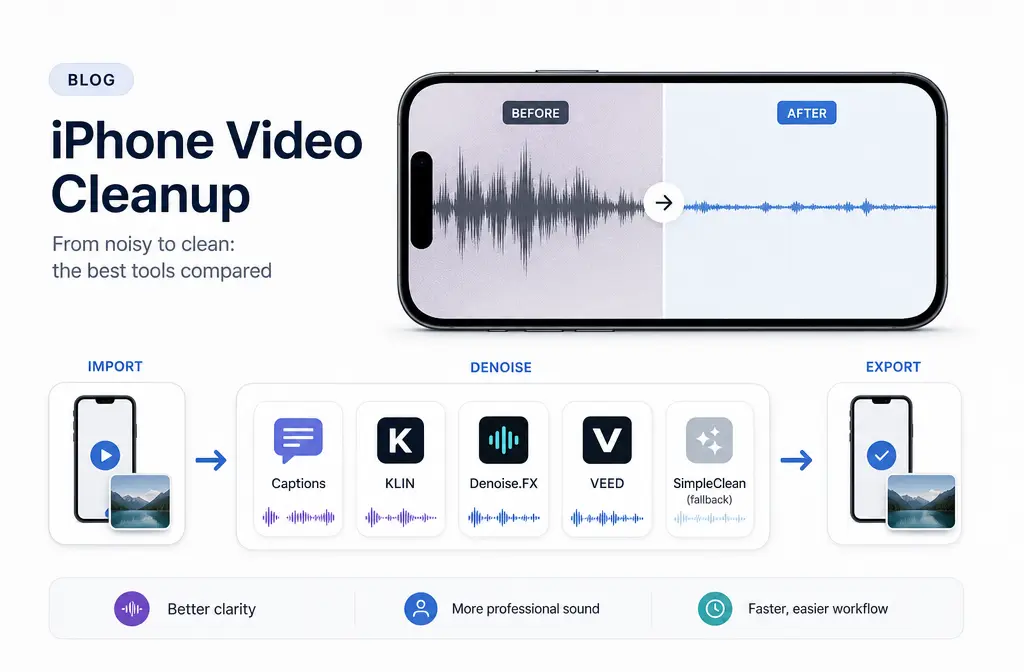
If you already have a noisy iPhone video and want the fastest fix, the best app depends on how you work. For quick spoken-video cleanup inside a mobile video workflow, Captions is the strongest all-around pick based on its iPhone denoise workflow and direct support for common video formats including MOV and MP4. If privacy matters most, KLIN and Denoise.FX stand out because their App Store listings say processing happens offline or on-device. If you want more control instead of pure one-tap cleanup, Denoise.FX is the better fit because it specifically mentions manual tuning.
The biggest thing most roundups miss: iPhone denoise apps usually do best on steady background noise under clear speech such as fan noise, light hum, or hiss. They are much less reliable on strong wind, echo, overlapping voices, or music already baked into the clip. When the mobile result starts sounding robotic, watery, or thin, a post-export pass with SimpleClean is often the safer next step.
Quick Answer: best iPhone apps by use case
| Use case | Best pick | Why it stands out | Main tradeoff |
|---|---|---|---|
| Best overall for quick spoken-video cleanup | Captions | Official page says its iOS app can remove background noise from video on iPhone and supports MOV, MP4, QuickTime, and other formats. | It is part of a broader AI video editing workflow, so it may be more tool than you need if you only want denoise. |
| Best if you also want editing and creator tools | Captions | Useful if your workflow also includes captioning, talking-head edits, and export-ready social video. | Not the most privacy-first option in this shortlist. |
| Best offline/on-device cleanup | KLIN | App Store listing says it works offline, removes wind, hum, and background noise, and exports back to Photos. | Less of a full editing suite. |
| Best for adjustable denoise | Denoise.FX | App Store listing says processing is on-device and includes optional manual tuning plus audio/video export options. | May take more trial and error than one-tap tools. |
| Best browser-based alternative from iPhone | VEED | Official page positions it as Dolby-powered AI cleanup and free to try. | Continued use is gated behind Pro, and it is not a true on-device iPhone app workflow. |
| Best fallback when app denoise hurts the voice | Remove stubborn video noise on iPhone with SimpleClean | Good fit after export when speech comes back metallic, thin, or artifact-heavy. | Separate cleanup step after the mobile edit. |
How we judged the tools
For this article, the shortlist is intentionally small. The goal is not to dump a list of 12 apps on you. It is to help you choose the fastest workable option for spoken iPhone video.
- Direct video import: Can it work with actual video files such as MP4 or MOV, not just audio?
- Speech preservation: Is the tool positioned for spoken voice cleanup rather than generic audio filtering alone?
- Intensity control: Can you adjust the amount of denoise, or is it one-click only?
- Export flexibility: Can you get the cleaned video back out cleanly?
- Privacy: Does the source say it works offline or on-device?
- Price friction: Is it free to try, gated, or likely to involve a broader subscription workflow?
That framework matters because an iPhone creator does not just need “noise reduction.” They need a realistic mobile workflow: import the clip, preview the voice, export it, and make sure the video still looks right in Photos or Files.
Best overall for quick spoken-video cleanup: Captions
Captions is the strongest overall recommendation for most iPhone creators cleaning spoken video fast. Its official background noise remover page says the iOS app can denoise videos on iPhone, and it lists support for MOV, MKV, AVI, MP4, GIF, QuickTime, and FLV. That makes it especially relevant if your source footage is already sitting in Photos as a normal iPhone video export.
Why it wins for most people:
- It is clearly built for video creators, not only audio editors.
- The official workflow is iPhone-friendly.
- It supports common video formats directly.
- It fits well if you also want captions, editing, and social-ready outputs.
The tradeoff is simplicity versus scope. If you only want to rescue one noisy talking-head clip, a full AI video editor can feel heavier than a dedicated cleaner. But if your normal workflow already includes trimming, subtitling, and publishing, Captions is a practical one-stop option.
If captions are your next step after noise cleanup, Best AI Captions is also worth a look for adding subtitles to finished videos.

Best for creators who already edit in a full video app: Captions or VEED
If your real need is not just denoise but a broader editing pipeline, the choice usually comes down to mobile-native convenience versus browser flexibility.
Captions
Better if you want an iPhone-centered workflow with direct denoise inside a creator app built for social video.
VEED
Better if you are comfortable working in a browser from your phone and want an all-in-one online editor approach. VEED’s official page positions its tool as Dolby-powered AI audio cleanup and says it is free to try, with ongoing use tied to Pro.
VEED is a reasonable option if:
- You already use browser editors.
- You want denoise as part of a wider edit.
- You do not need offline or on-device privacy.
VEED is less ideal if your priority is true iPhone app speed or if you are sensitive to upload-based workflows.
Best for offline/on-device cleanup: KLIN
If privacy matters most, KLIN is one of the clearest picks in this topic. Its App Store listing says it removes wind, hum, and background noise, works offline, and exports back to Photos. That combination makes it easy to understand: bring in a video, clean it locally, then send it back into your normal iPhone camera-roll workflow.
KLIN is a strong fit for:
- Coaches or consultants recording client material on iPhone
- Creators who do not want to rely on a browser upload workflow
- Quick cleanup of fan noise, hum, or light environmental noise
- Users who want the cleaned result back in Photos
Just keep your expectations realistic. “Removes wind” in an app listing does not mean every windy beach clip will become studio-clean. On mobile, strong gusts and clipped speech are still hard problems.
Best for adjustable denoise instead of one-click only: Denoise.FX
Some users hate one-tap cleanup because it can overdo the processing. That is where Denoise.FX stands out. Its App Store listing says processing is on-device and includes optional manual tuning plus video and audio export options.
That makes Denoise.FX the best pick here if you want to dial the result in rather than accept a single automatic version.
Denoise.FX makes more sense when:
- The noise is mild to moderate, but one-click tools make your voice sound too processed
- You want to test lighter and stronger settings
- You care about on-device processing
- You may want either audio-only or video export
The downside is that manual control means more room for user error. If you push denoise too far, even a good app can make speech brittle or underwater-sounding.
What these apps can usually fix well
Across the sources and competitor landscape, the pattern is consistent: mobile denoise works best when the voice is already reasonably clear and the unwanted sound is fairly steady.
- Fan noise
- Steady room hum
- Light hiss
- Constant low-level background noise
That is why these apps are often effective for indoor talking-head videos, quick explainer clips, coaching recordings, and simple vlogs shot in a room with an HVAC system or computer fan nearby.
What they usually struggle with
This is the decision boundary most search results gloss over. iPhone denoise apps are not magic repair tools for every kind of bad audio.
- Strong wind: especially gusty or hitting the mic directly
- Overlapping voices: when background speech competes with the speaker
- Music behind speech: if the music is already baked into the clip
- Echo and reverb: roomy, reflective audio is often much harder than simple hiss or hum
- Traffic bursts or sudden noises: irregular noise is harder than constant noise
When mobile denoise struggles, the failure pattern is usually obvious: your voice comes back sounding robotic, metallic, watery, or overly thin. That is your sign to stop pushing the effect harder.
iPhone workflow: import, preview, export, re-check
- Import the original clip. Start with the highest-quality version of your MP4 or MOV from Photos or Files.
- Run denoise on a short speech-heavy section first. Preview the part with the most obvious background noise.
- Listen for voice damage, not just noise reduction. The best setting is usually the lightest one that improves clarity.
- Export the cleaned video. If the app offers video export, use that instead of screen recording the result.
- Re-check in Photos or Files. Confirm the audio stayed synced and the video quality still looks normal.
- Spot-check with headphones and speaker playback. Some artifacts are easier to hear on earbuds than on the iPhone speaker.
This small test-first habit can save a lot of time. Many creators apply aggressive denoise to the entire clip, export it, and only then realize the speech got worse.

When an iPhone app is not enough
If your exported video still sounds strange after mobile cleanup, the problem may not be that you chose the wrong app. It may be that the recording has crossed the line from “steady noise suppression” into “audio repair.”
That is where a separate post-export cleanup pass makes more sense. Use the iPhone app for trimming and rough cleanup, then export the file and run a second pass only if needed.
A separate cleaner is worth using when:
- The app removed noise but made the voice thin or metallic
- There is lingering hum, hiss, or clicky artifacting
- The clip has echo or stubborn room sound
- You want a cleaner result without re-editing the whole video project
For that workflow, you can clean exported iPhone video audio with SimpleClean after the mobile edit instead of stacking more processing inside the editor. That is especially helpful when your first denoise pass fixed part of the problem but introduced new artifacts.
If your project also needs multilingual publishing after cleanup, Translate Dub can help translate, dub, and caption the video for additional audiences. And once the cleaned video is ready to distribute across channels, Mallary.ai fits naturally for scheduling and publishing social content across multiple platforms from one system.
Best pick by creator type
- Fastest answer for most iPhone talking-head creators: Captions
- Best privacy-first pick: KLIN
- Best if you want manual control: Denoise.FX
- Best browser-based editor alternative: VEED
- Best fallback for stubborn artifact-prone exports: fix noisy iPhone video audio with SimpleClean
Do video editors work better than dedicated cleaners?
Usually, they work better when you need editing plus cleanup. They work worse when you only need the cleanest possible speech rescue after the edit is already done.
A full video editor is the better choice if you also need:
- Trimming and rearranging clips
- Captions and subtitles
- Social-video formatting
- A single export workflow
A dedicated cleanup step is the better choice if:
- You already finished the edit
- The built-in denoise made the voice sound unnatural
- You need to salvage a problematic export
For adjacent workflows, you may also find these SimpleClean guides useful: Adobe Podcast vs VEED vs CapCut, remove background noise in Final Cut Pro for iPad, and remove background noise in InShot.
Final verdict
The best app to remove background noise from video on iPhone is Captions for most people because its official workflow is iPhone-friendly and it supports common video formats directly. Choose KLIN if offline privacy is your top priority. Choose Denoise.FX if you want on-device processing with manual tuning. Choose VEED if you prefer a browser-based editor and are comfortable with a Pro-gated workflow.
And if the mobile app gets you only halfway there, do not keep cranking denoise harder. Export the clip and remove background noise from your iPhone video with SimpleClean as a cleaner second step.
Sources and further reading
- Captions background noise remover - Official source for iPhone denoise workflow, supported formats, and product claims.
- VEED remove background noise from video - Official source for browser-based AI video noise removal positioning and Pro-gated continued use.
- KLIN App Store listing - Official App Store source for offline processing, wind/hum/background noise claims, and export back to Photos.
- Denoise.FX for Audio & Video App Store listing - Official App Store source for on-device processing, manual tuning, and audio/video export claims.
- Noise Reducer - audio enhancer App Store listing - Supplemental App Store source confirming iPhone availability in the broader category, though not a main recommendation here.
- Riverside best background noise removal apps - Competitor roundup showing the current SERP mixes audio-only and video workflows together.
- TechPP best video background noise remover apps - Competitor editorial source with app-by-app framing that this article improves on with a tighter iPhone decision guide.